Manage conditions
With Splashtop Secure Workspace, you can define specific conditions to determine whether users are allowed access to applications and resources. There are three types of conditions you can define:
- Authentication and authorization conditions
- Domain naming service (DNS) conditions
- Generic access conditions
Authentication and authorization conditions
You can define conditions to control user authentication and access to applications and secrets by setting restrictions based on the following criteria:
- Date and time, including the time zone, time of day, and day of the week when an authentication or access request is made.
- Location (by country) where the authentication or access request originates.
- Operating system type and version being used to make an authentication or access request.
- Network IP addresses where the authentication or access request originates.
- Browser type and version being used to make an authentication or access request.
- Splashtop Secure Workspace extension availability and version.
DNS conditions
You can use DNS conditions to evaluate DNS access requests by setting restrictions based on the following criteria:
- Date and time, including the time zone, time of day, and day of the week when an authentication or access request is made.
- Location (by country) where the DNS access request originates.
- Operating system type and version being used to make the DNS access request.
- Network IP addresses where the DNS access request originates.
- Domain name being requested to prevent access to specific domains.
- Content categories being requests to filter content allowed based on categories such as education or shopping websites.
DNS conditions enable you to manage access requests based on internet usage patterns.
Generic conditions
You can define generic conditions to control access by setting restrictions based on the following criteria:
- Date and time, including the time zone, time of day, and day of the week when an authentication or access request is made.
- Location (by country) where the authentication or access request originates.
- Operating system type and version being used to make an authentication or access request.
- Network IP addresses where the authentication or access request originates.
Reusing conditions
After you define a condition you can use it in multiple unified policies to streamline policy management. When you add conditions to a policy, you can choose how it is evaluated and what action to take as a result of the evaluation. For example, you can create a Location condition with a list of countries. In a unified policy, you can set a control that if the Location condition is true to allow access. You can use the same condition in another policy that checks if the Location condition is false to require multifactor authentication. For more information about using conditions in unified policies, see Manage unified policies.
Create a condition
To create a new condition:
-
Sign in with your administrative account to open the Splashtop Secure Workspace administrative portal.
-
Click Access, then click Conditions.
-
Click Add Condition.
-
Type a descriptive name for the new condition that indicates the type or purpose of the condition.
-
Select an appropriate Condition Type depending on the type of information you want to use to allow or deny access.
- Select Authentication and Authorization for conditions that control access for applications, secrets, and user authentication.
- Select DNS condition for conditions that allow or deny access based on domain names or content categories.
- Select Generic conditions for general purpose conditions.
-
Click Add Condition, then select the type of condition you want to define.
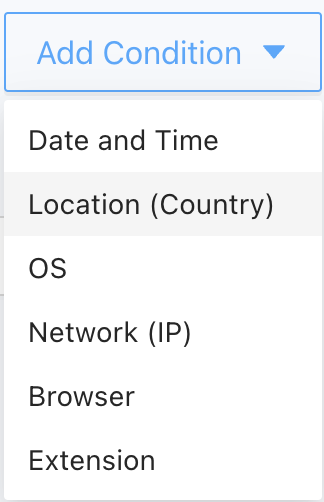
-
Set the restrictions you want to apply for the selected condition type.
For example, if you selected Location, add one or more countries to the condition. You can add multiple condition of the same type—for example, three countries—by clicking the plus (+). You can also add more than one type of condition to the same condition name. For example, you can a conditioned naming
Working hoursand add a Date and Time condition type to set the appropriate work days and working hours and add a Location condition type to specify the country where the work days and working hours apply. -
Click Save to save the conditions you've defined.
Now that you have a condition, you can use it in a unified policy. For more information about using conditions in unified policies, see Manage unified policies.